
How to add skies to Photoshop
Adobe Photoshop 2021 introduced sky replacement, an incredible new feature that will speed up your editing workflow by making replacing skies a simple process achievable in just a few clicks! Here's how to add your new skies to your Photoshop sky replacement library.

Step 1
Choose Edit > Sky Replacement. The Sky Replacement dialog box will appear. Click the arrow next to the preview image.
Step 2
Another dialog box appear showing your current library. Click the plus button at the bottom and locate new skies on your computer.
Step 3
Adjust the sliders to create your perfect image.
The sky area on the original image is automatically selected and masked by Photoshop. Your new sky is then blended in its place.
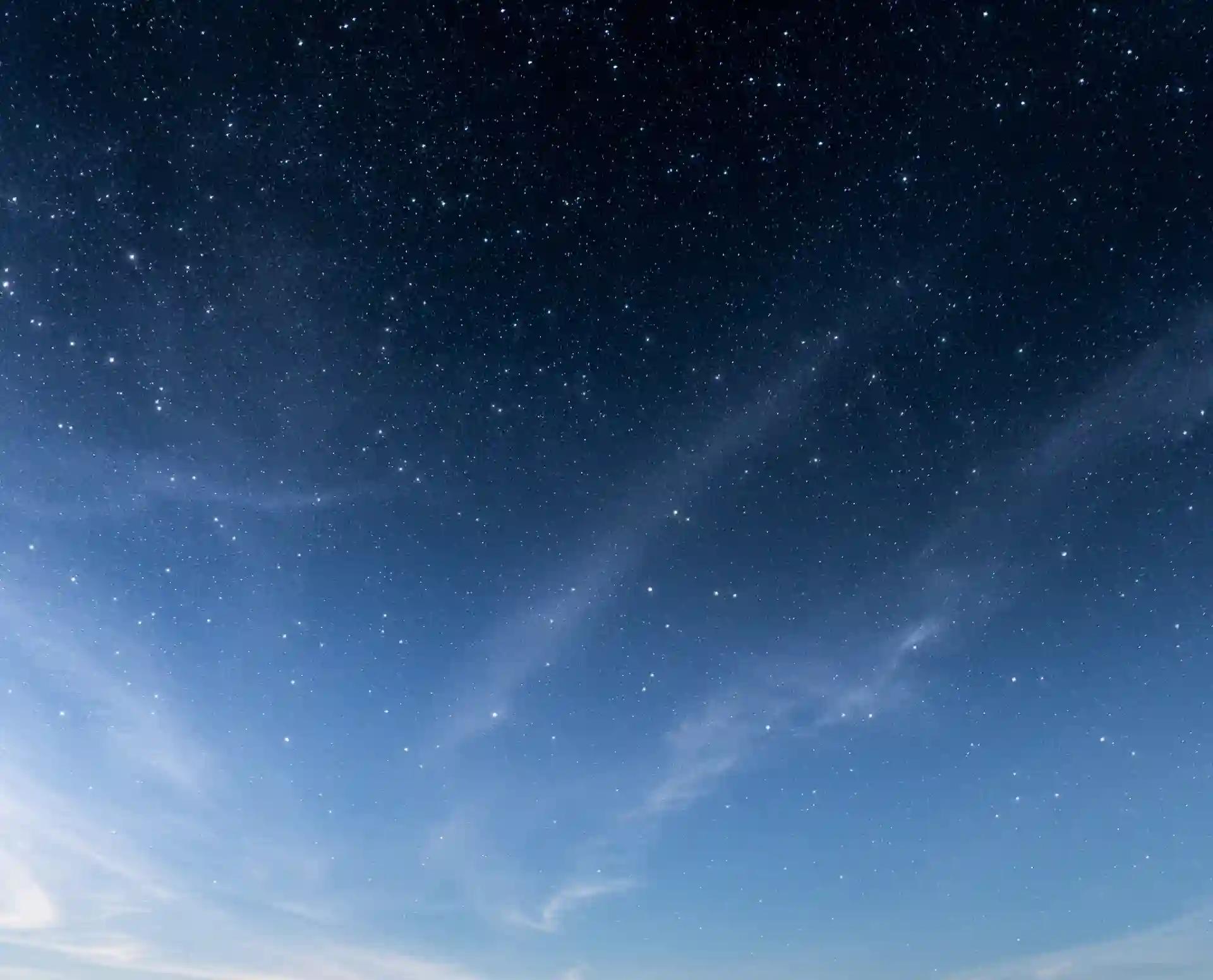
Get all 1000+ skies. Pay once. Enjoy forever.
Enjoy a lifetime, royalty-free licence to use this image library in your projects.


JPEG
- Ideal for hobbyists and amateurs
- Quick download
- Compatible with Photoshop
- Compatible with Luminar
- Lifetime royalty-free usage
TIFF + JPEG
Highest quality- Highest quality available
- RAW image format
- Professional grade imagery
- Suitable for advanced editing
- Lifetime royalty-free usage